
Overview of Items
APPLICABLE ROLE: Hotel Admin/FNB Admin
Navigation: Features>Food & Beverages>'Restaurant'>Items
Items is a section where all added Items are documented. Users can add/edit/delete added Items in the Item browser. Items may or may not be linked to an Options Group. If it is linked with an Options Group, then the user will need to create the Options Group first and added in the Add/Edit Item browser. Items are often linked to a Menu, users can select specific items and add them to the Menu.
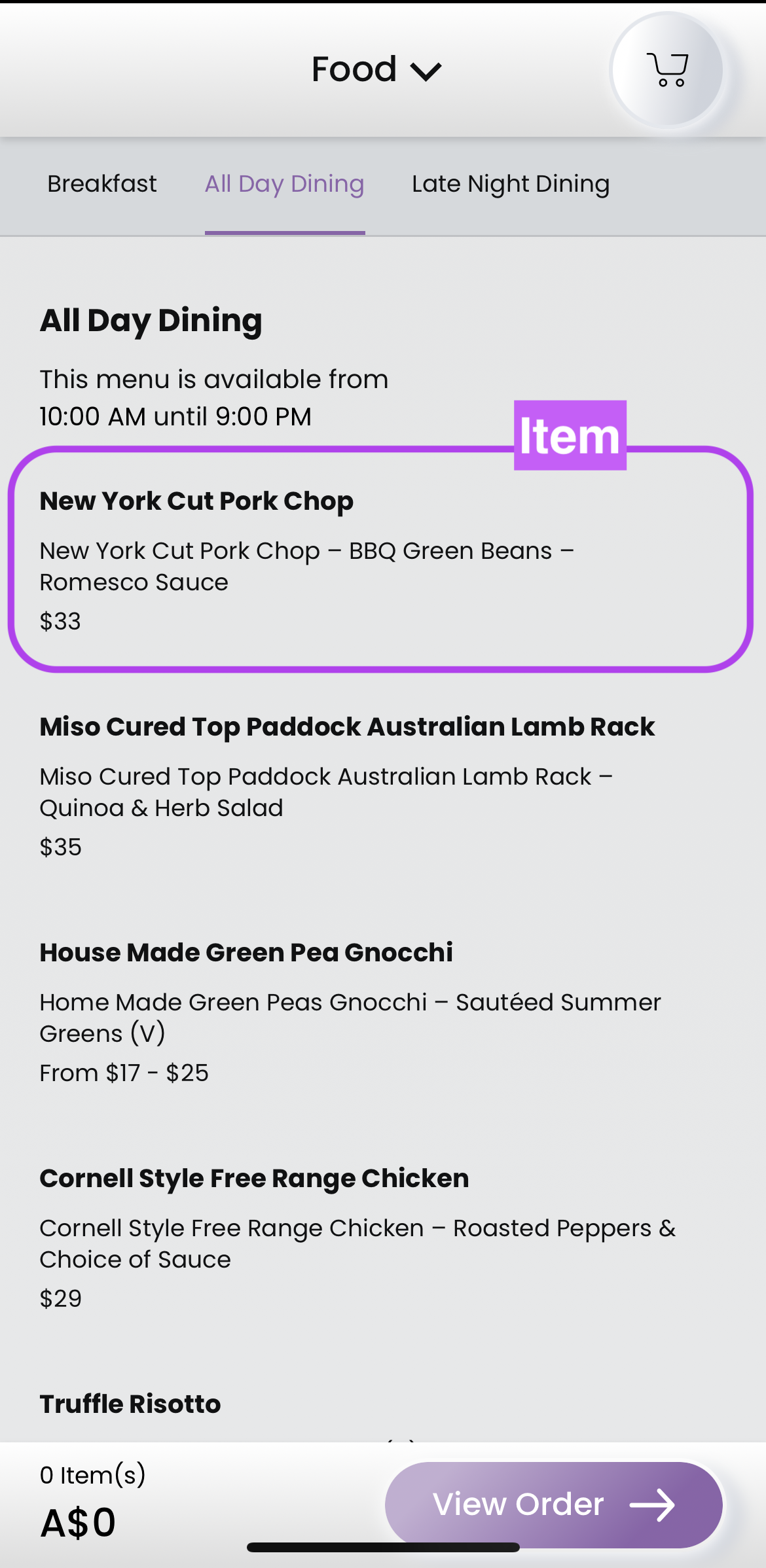
Guest-facing Browser
For Example: Item 'New York Cut Pork Chop' - Menu 'All Day Dinning'
Admin Portal Item Browser

- Breadcrumb: This section shows the navigation of the browser.
- Search: The user can search the Item by entering the name of the option group.
- Add Item (button): This button directs to a new browser for users to add a new Item when needed.
- Edit (icon): This button directs to a new browser for users to edit the selected Item.
- Delete (icon): This button allows the user to delete the selected Item.
- Choices: Choices are shown if the Item is linked to an Options Group or Multiple Options Groups. (1 Choices =. 1 Options Group, 2 Choices = 2 Options Groups).
- Item Section: Each section represents an Item.
How to add an Item?
Step 1: Navigate to the Item browser within the selected 'Restaurant'. Click Add Item on top right corner.

Step 2: Enter Item details in the associated fields. 
Note* It will increase guest traction if an image of the Item is added.

Step 3: If your Item has options to choose from, enter the name of the Options Group associated to the Item.

Step 4: When finished entering Item details, Click Save to save the Item.

How to edit an Item?
Step 1: Navigate to the Item browser, click Edit (icon) of the selected Item.

Step 2: Make edits in the Edit Item browser.

Step 3: Once finished editing the Item, click Update to save all the amended details.

Step 4: The user will be directed back to the Item browser, and a green success notification will be shown.

How to delete an Item?
Note* To delete an Item meaning that the data and information of the Item will be permanently deleted. If you wish to keep a record of the Item, but want to hide from a guest-facing browser. Simply edit the Status of the Item (please refer to How to edit an Item above)
Step 1: Navigate to the Item browser, click Delete (bin icon) to delete the selected Item.

Step 2: A window will appear to confirm the deletion, click OK to proceed with the deletion.

Step 3: A green success notification will appear to confirm your deletion. And it should be immediately deleted from the Item browser.

Comments
0 comments
Please sign in to leave a comment.