
Overview of Restaurant
Users are able to add/edit restaurants in the Restaurant browser. To note, only One restaurant can provide Room Service, hence it would only link to the One restaurant for any Food and Beverage - Room Service Orders. To add Menus please refer to Menu articles.
How to add a new restaurant?
APPLICABLE ROLE: Hotel Admin/FNB Admin
Navigation: Features>Restaurants>Add Restaurant
Step 1: On the Restaurant browser, click ADD RESTAURANT on the top right corner.

Step 2: When landed on the Add Restaurant browser, enter listed details.
- Translate: The user can select whether this restaurant menu would require translation.
- Name: The name of the restaurant.
- Service Charge: The user can add an additional service charge to the restaurant if needed. For example: if the service charge was $5, and the cost of the meal is $45 then the total bill will be $45 + fixed $5 = $50.
- Room Service: This identifies whether the new restaurant is available for room service.
- Status: This identifies whether the restaurant is active or inactive.
By 'Active', meaning the restaurant is showing in the guest-facing interface.
By 'Inactive', meaning the restaurant is not showing in the guest-facing interface but the content is available and editable in the Admin Portal. - Save (button): This is a button to save the information entered above.

Step 3: The newly added restaurant should appear on the Restaurant browser.

How to edit a restaurant?
Users can manage the restaurant information by making edits to their existing restaurants. This article provides information about editing the main information (Name, Status and Service Charge) of the restaurant. For more information about editing menus, please refer to other Food and Beverage articles.
APPLICABLE ROLE: Hotel Admin/FNB Admin
Navigation: Features>Restaurants
Step 1: On the Restaurant browser, click the edit (pencil icon) on the selected restaurant.
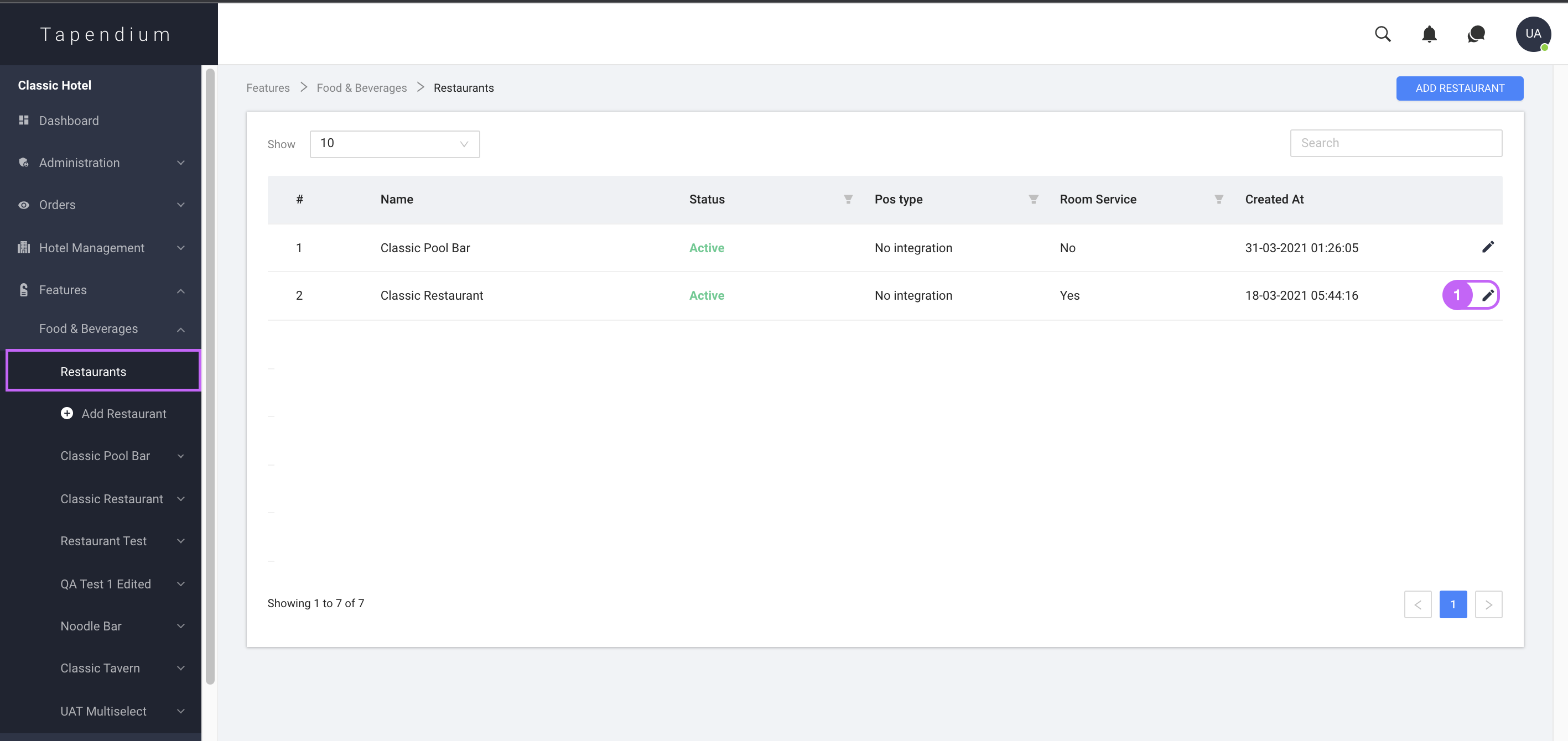
Step 2: When landed on the Edit Restaurant browser, make edits to applicable fields.

Step 3: Click Update when finish editing.

Comments
0 comments
Please sign in to leave a comment.