
Overview of the Options/Option Groups
APPLICABLE ROLE: Hotel Admin/FNB Admin
Navigation: Features>Food & Beverages>'Restaurant'>Options
Options is a section where guests can select the choices from an individual item. Users can create an Option Group with associated options and link to an Item.
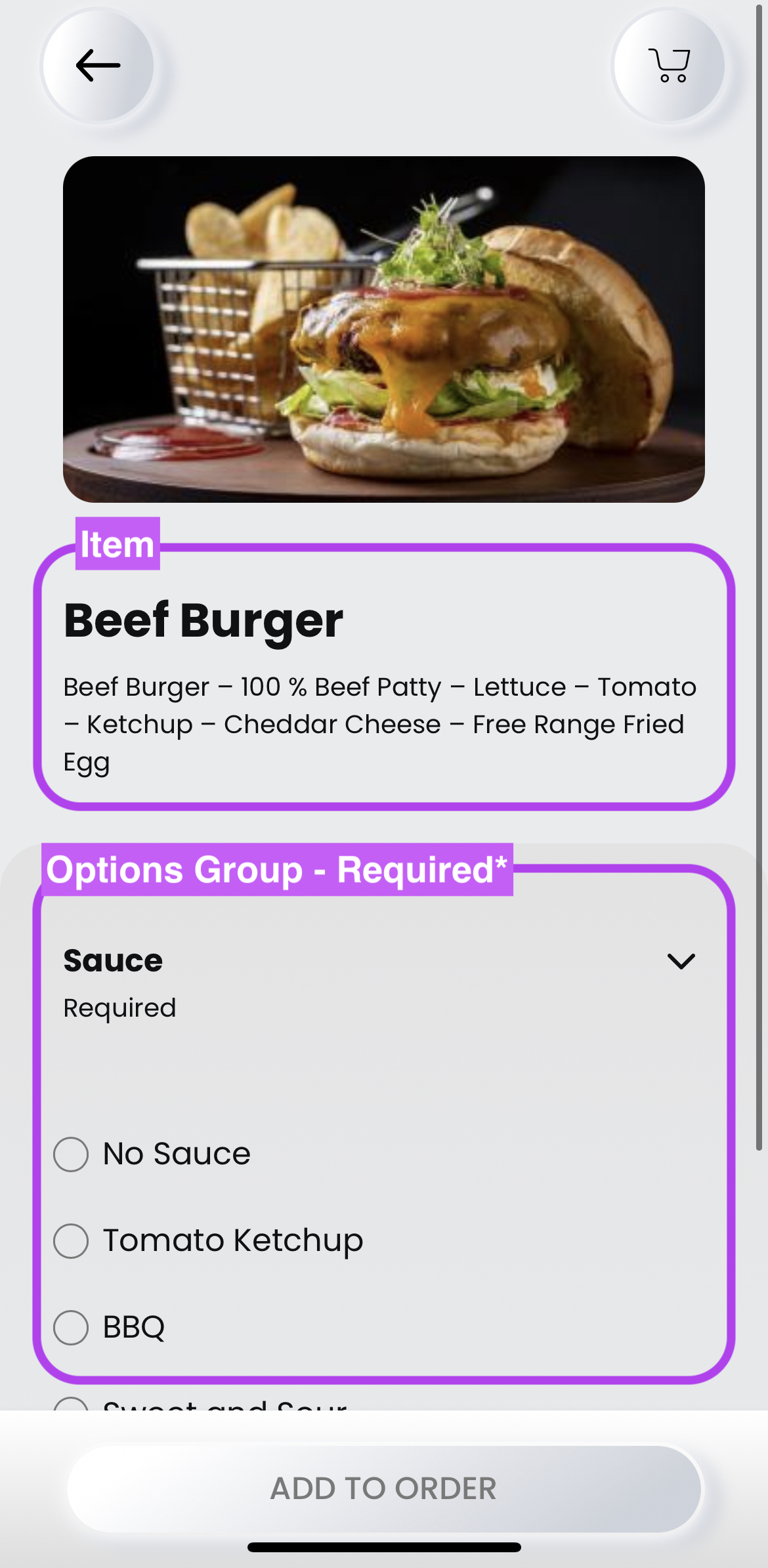
For Example: Item 'Eggs your way' and Option Groups 'Sunny Side/Poached Egg-Soft/Poached Egg-Medium/Poached Egg-Hard/Fried' (check Image below for reference)
Guest-facing Browser
 .
. 
Admin Portal Option Group Browser

- Breadcrumb: This section shows the navigation of the browser.
- Search: The user can search the option group by entering the name of the option group.
- PLU Export (button): This button allows users to download an excel spreadsheet of the Option Groups list in XLS/XLSX format.
- PLU Import (button): This button allows users to upload an excel spreadsheet of the Option Groups list in XLS/XLSX format.
- Add Options (button): This button directs to a new browser for users to add a new Option Group when needed.
- Option section: Each section represents an Option Group.
- Option Status: This is a quick view of the status of the Options Group (includes Status, Required, Multi-select).
- Edit (icon): This button directs to a new browser for users to edit the selected Options Group.
- Delete (icon): This button allows the user to delete the selected Options Group.
- Expand view (icon): The user can click on the icon to quickly overview the Item without entering a new browser.
How to add an Options Group?
Step 1: Navigate to the Options browser of the selected Restaurant, then click Add Options on the top right corner.

Step 2: When land on the Add Options Group Page, enter Option Group Details.

Option Group Details:

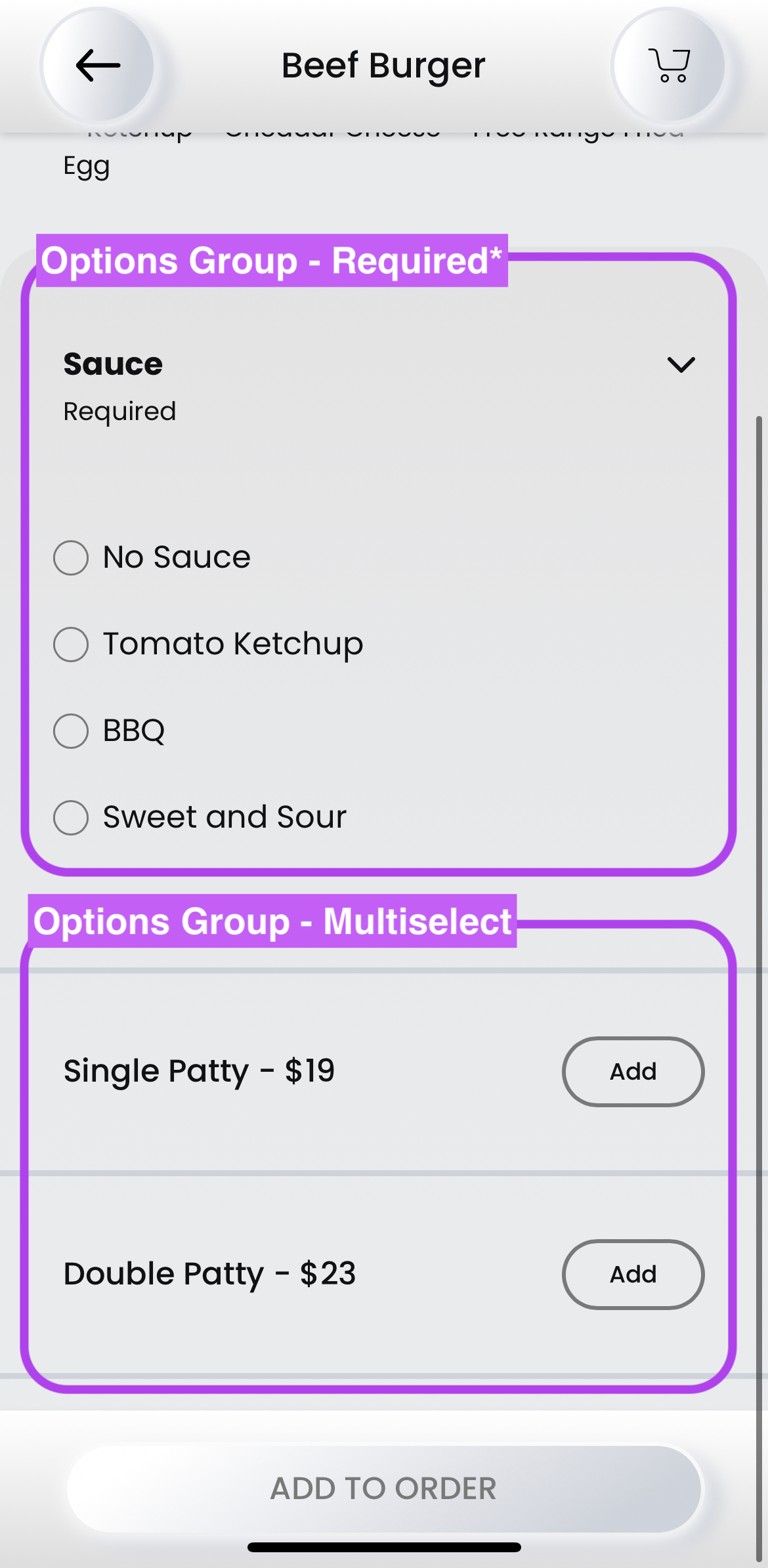
Required: When selecting this tick box, the Options Group will be identified as a must required selection with the associated Item. For example: Item 'Beef Burger' - Options Group is a required option to choose 'Sauces'.
Show As Sizes: When selecting this tick box, the Options Group will be shown as a Sizes with an associate Item.
Multi-Select: When selecting this tick box, guests can select multiple options in the Options Group. This tickbox usually applies to Items, with additional options for guests to add to order.
For example: Item 'Beef Burger' - Option 'Single Patty' can be selected, so does Option 'Double Patty'.
Status: This selection determines the Active and Inactive status of the Options Group.
Active: The Options Group will be shown in guest-facing browsers.
Inactive: The Options Group will not be shown in the guest-facing browser, but the data will remain in the Admin Portal.
Step 3: Enter Individual Option details and click Add to add Option into the table below.

Step 4: Once finished entering details, check if Options are listed correctly.
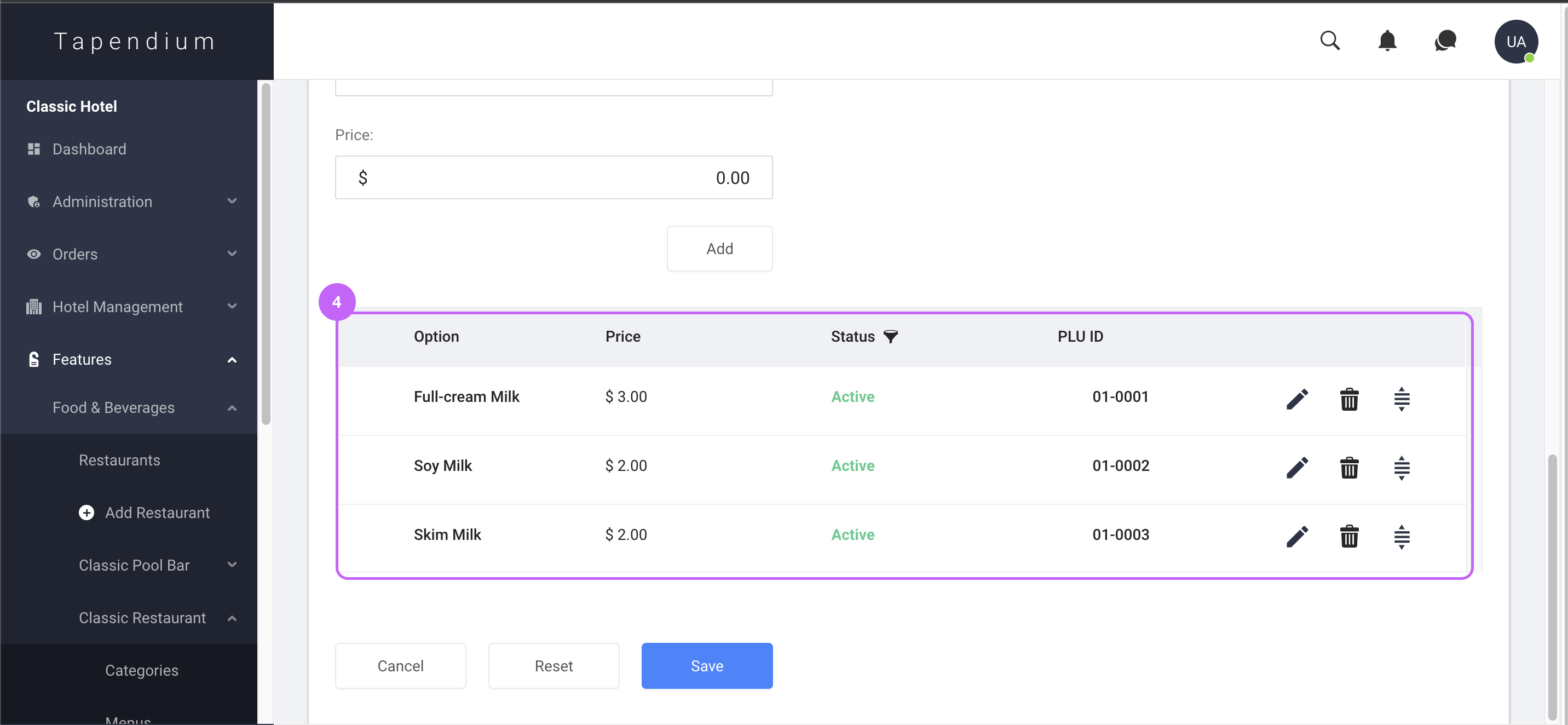
Step 5: Click Save to save the Options Group.

Step 6: A green success notification will appear to confirm the added Options Group. And the user should see the Option Group Immediately in the Options browser.

How to edit an Options Group?
Step 1: Navigate to Options Page, click the Edit (icon) of the selected Options Group.

Step 2: Make edits in the Edit Option Groups browser.

Step 3: Click Edit (pencil icon) in the table to make edits for individual options.

Step 4: When finish editing individual options, click Tick (icon) of the edited option.
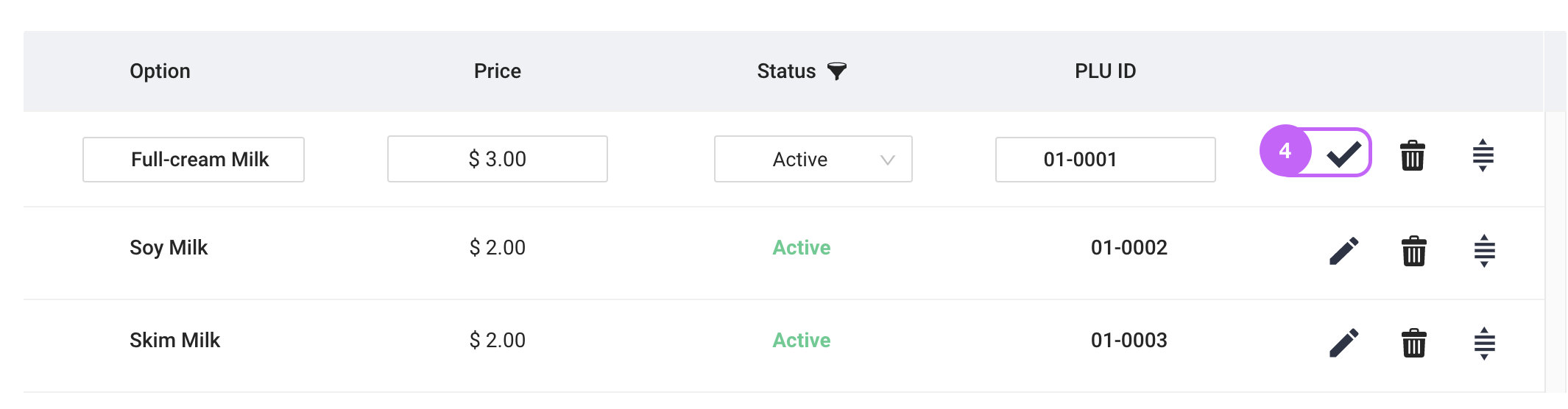
Edit Icon Details

Edit: Click this icon is to edit option details.
Delete: Click this icon to delete the individual option.
Re-order: Click and hold to move the orders of the options listed (the order will reflect on the display on the guest-facing browser)
Step 5: Once finished editing the Options Group, click Update to save all the amended details.

Step 6: The user will be directed back to the Options browser, and a green success notification will be shown.

How to delete an Option Group?
Note* To delete an Options Group meaning that the data and information of the Options Group will be permanently deleted. If you wish to keep a record of the Options Group, but want to hide from a guest-facing browser. Simply edit the Status of the Options Group (please refer to How to edit an Options Group above)
Step 1: Navigate to the Options browser, click Delete (bin icon) to delete the selected Options Group.

Step 2: A window will appear to confirm the deletion, click OK to proceed with the deletion.

Step 3: A green success notification will appear to confirm your deletion. And it should be immediately deleted from the Options browser.

Comments
0 comments
Please sign in to leave a comment.