
Sometimes the device will be stuck on a green syncing screen.
This occurs when the device loses network connectivity while a sync was sent to the device.
This can remove the room allocation in the process.
Open the Admin Portal -> Device Management -> Device Status and search for the device serial number (printed on the back of the device)
If the device is still online you can find the device and re-assign it to a room allocation.
In this example the device serial is R9PT10PGVZN
How to re-allocate inactive online devices in Tapendium Admin
If the device is still online you can find the device and re-assign it to a room allocation. In this example the device serial is R9PT10PGVZN
1. Navigate to you Admin Portal - Device Management page
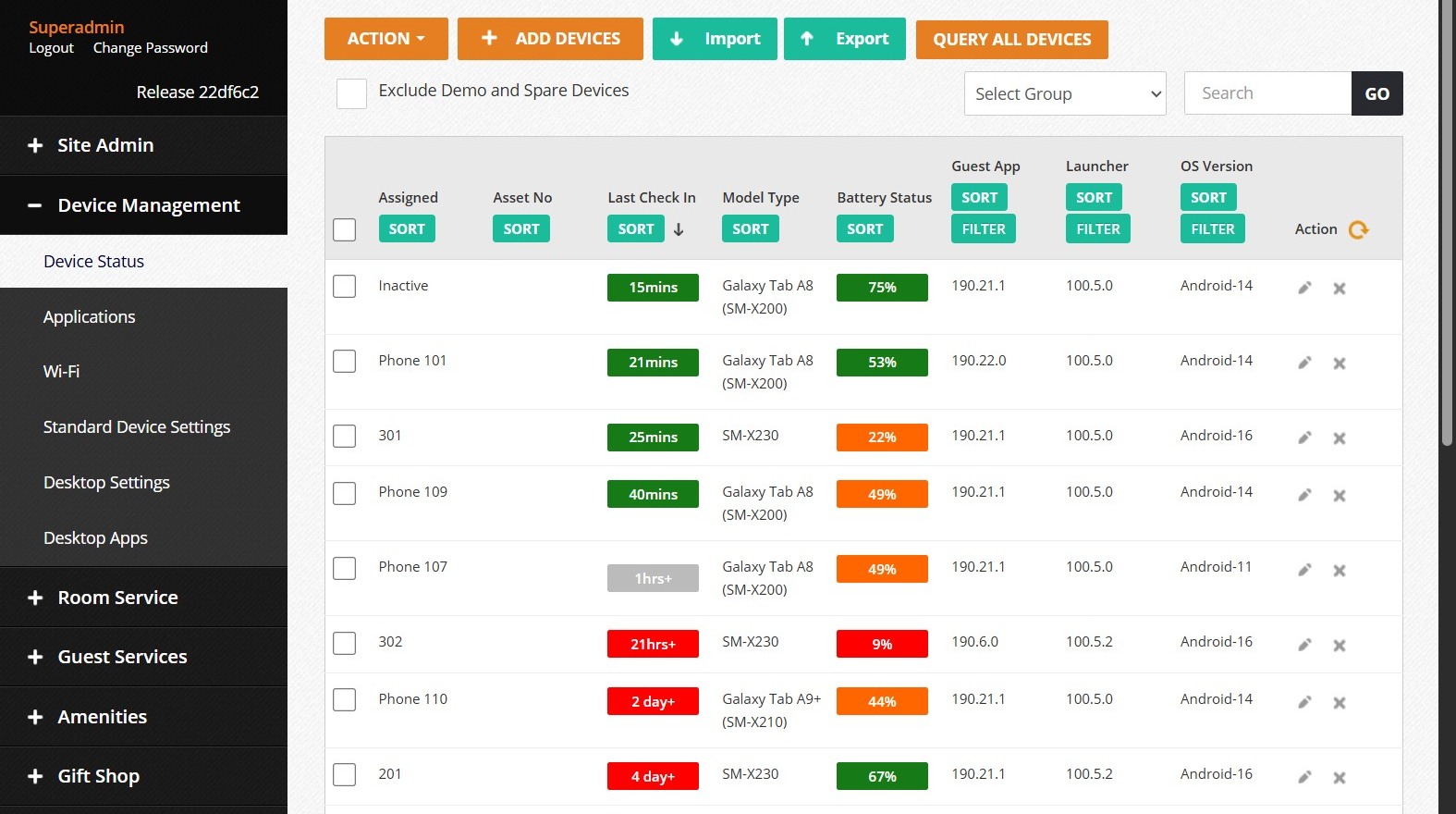
2. Select Device Status from sidebar menu.
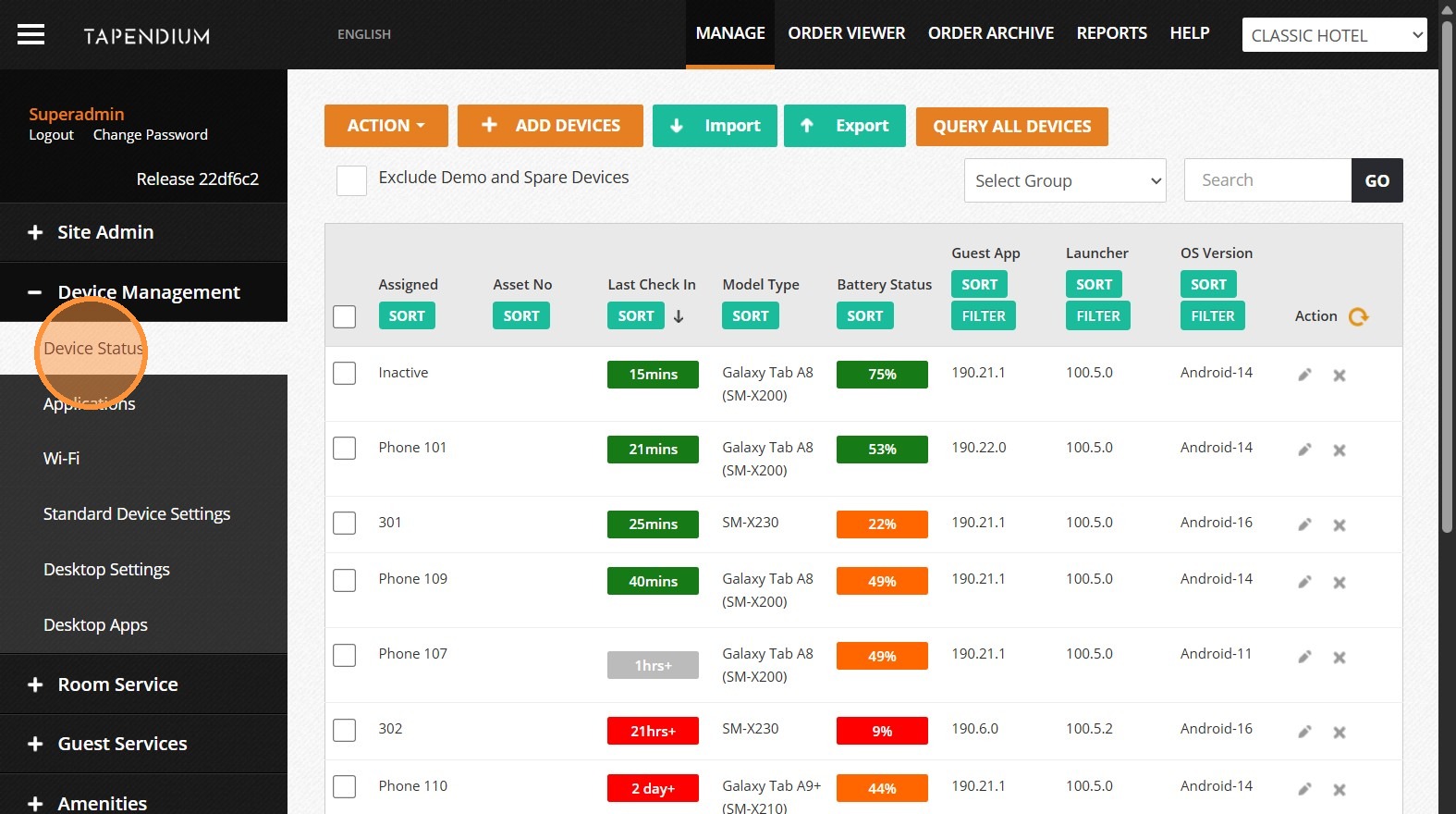
3. Click the "Search" field.
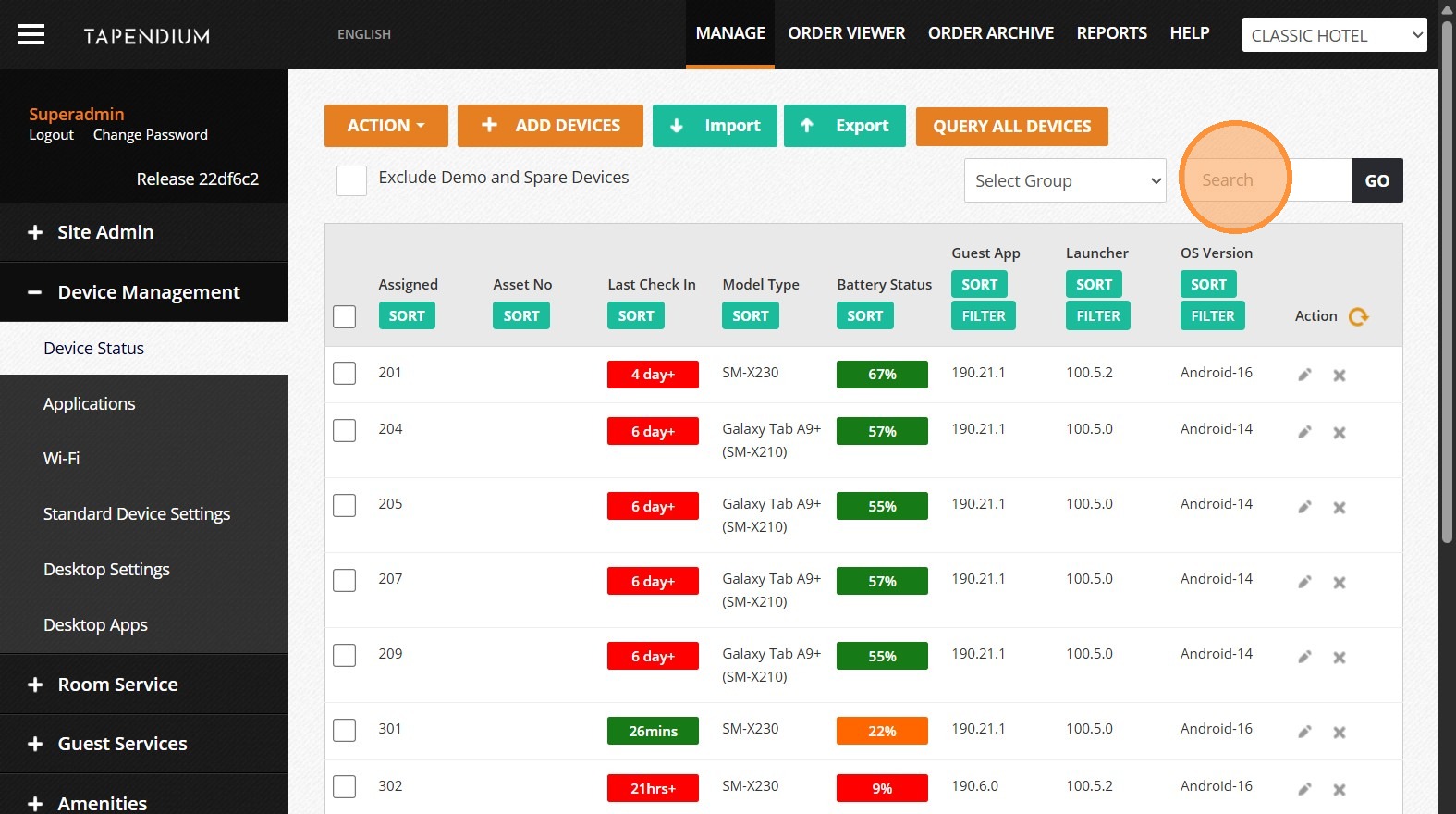
4. Press [[ctrl]] + [[v]]
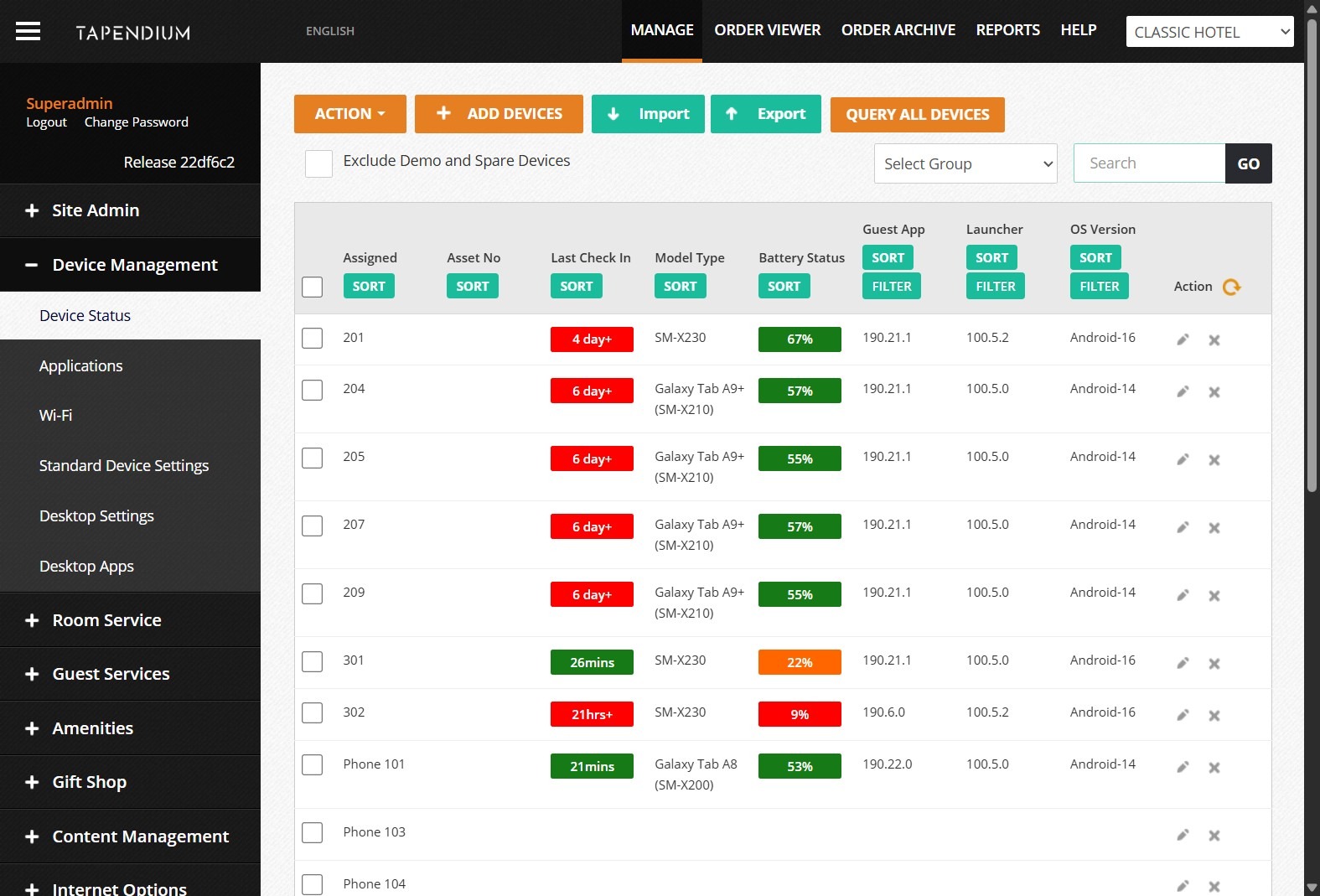
5. Click "GO"
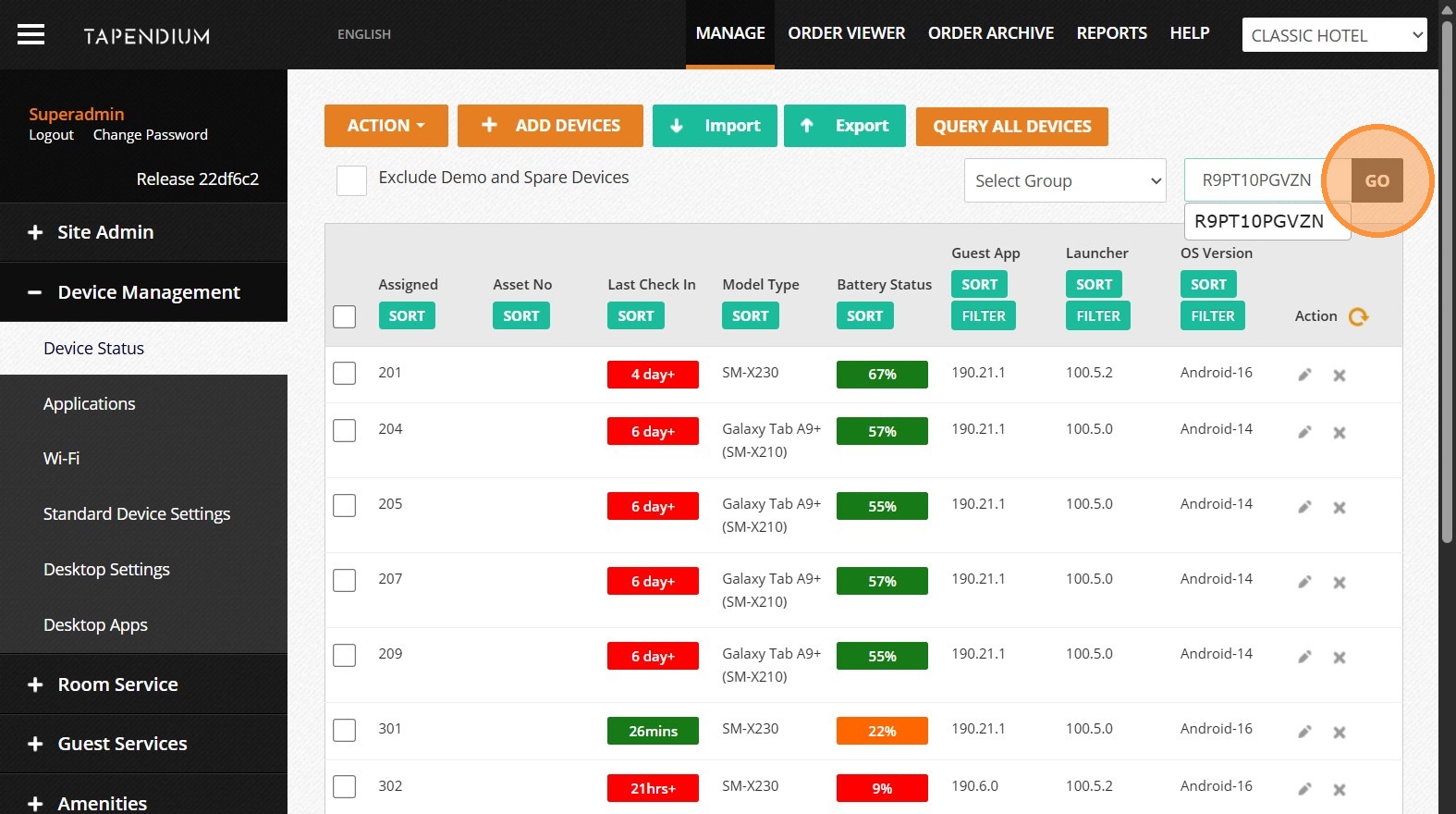
6. Click device edit to open device status.
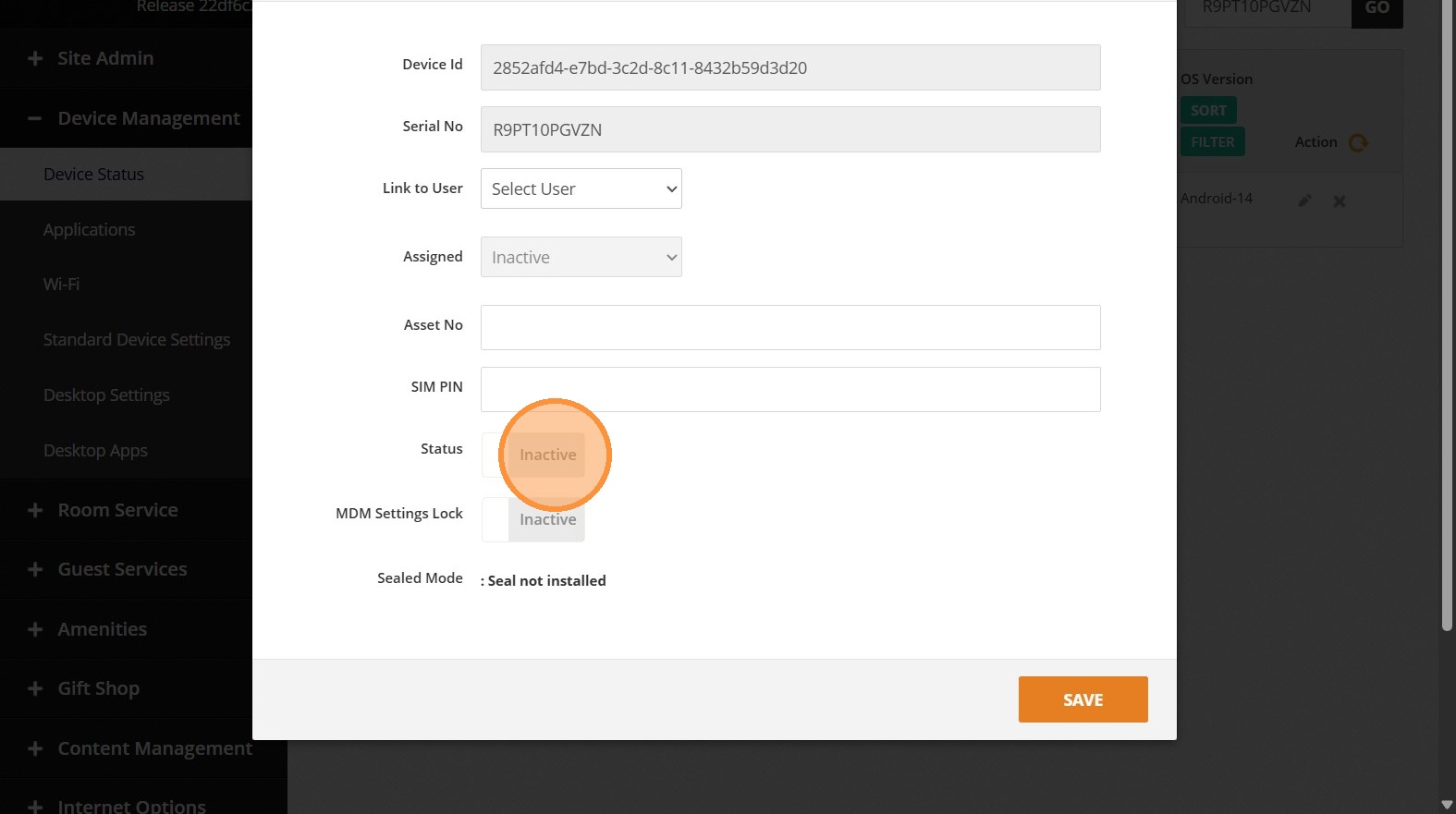
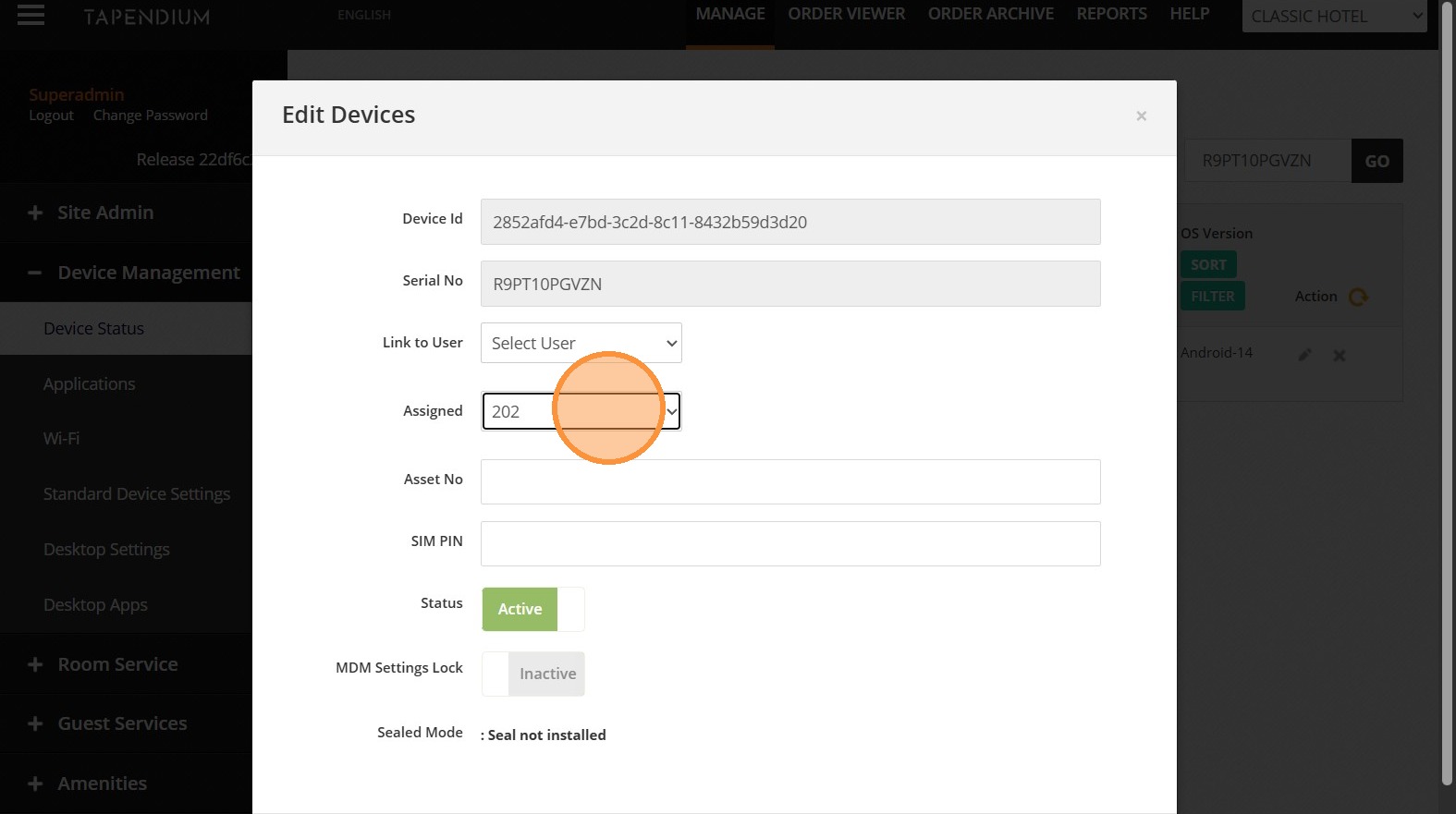
7. Select the room the device was allocated to from Assigned dropdown menu.
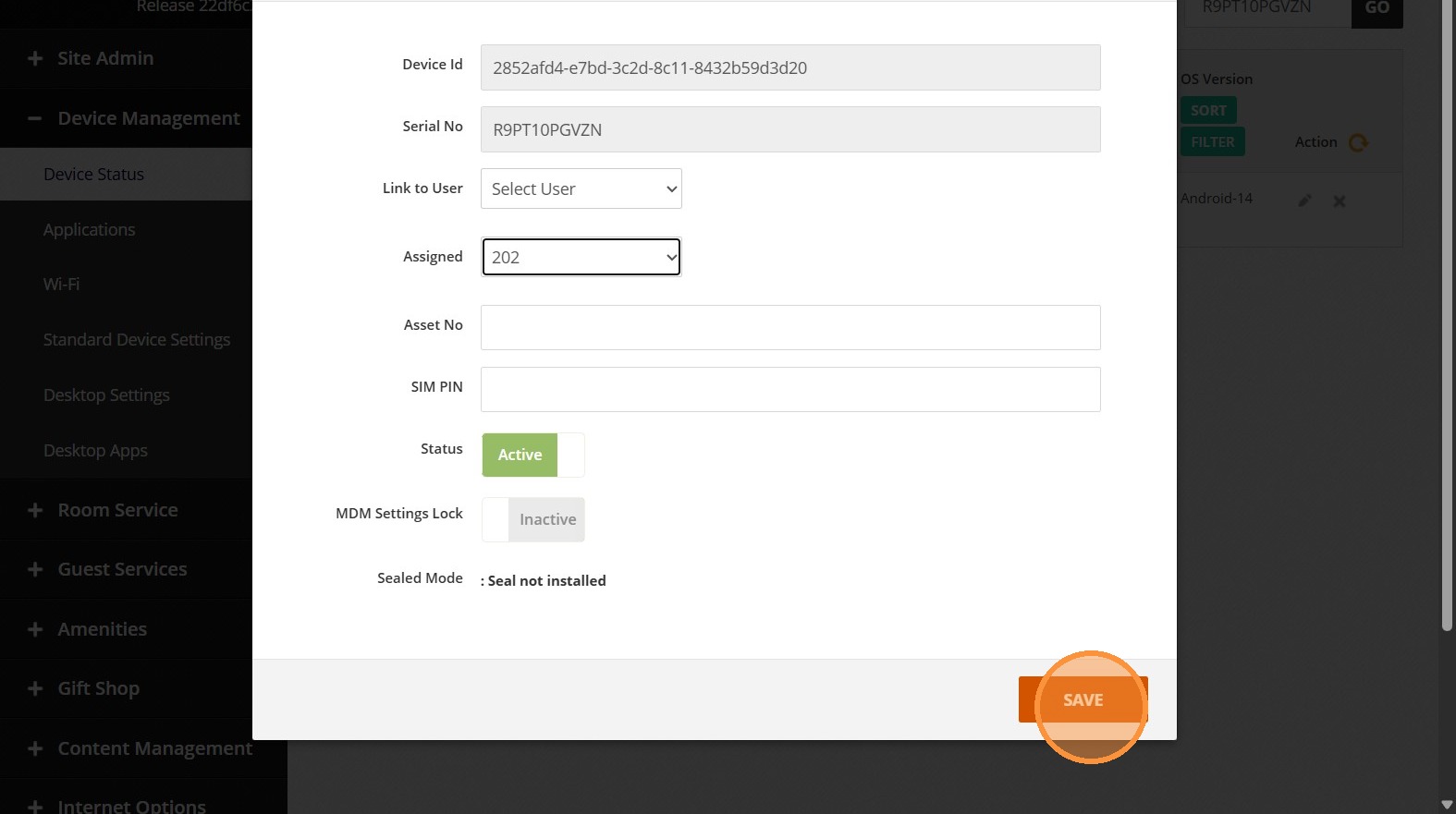
8. Click SAVE to apply changes.
Made with Scribe
If the device is offline and still allocated to the room number restart the device. The device will look for the default property WiFi network SSID and automatically re-connect.
If this still does not fix the issue please contact support@tapendium.com and we will need to send you a nine digit code to exit the Kiosk so you can manually re-connect to the WiFi network.
Comments
0 comments
Please sign in to leave a comment.