
PLEASE NOTE: Never delete messages for guest as they may keeping sending, just make them inactive by changing the expiry date to the current day. 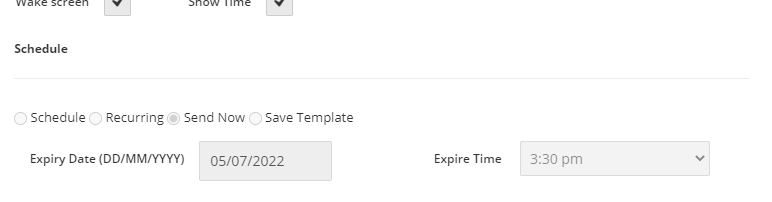
- The Messaging feature
- The Messaging Screen in Admin Portal
- The New Message Window
- What types of Messages can I send to tablets?
- How do I send a Message to tablets for guests to make a booking or request?
- How do I send a Message with a link to a Page or PDF?
- Create a Saved Message Template
- How do I send an informational Message?
- How do I send a Message with a link to an external website?
- How do I schedule a Message to a tablet?
The Messaging feature
You can send messages directly to tablets with the Tapendium solution.
Messages can be targeted to specific Locations and Groups, such as individual rooms, certain floors, groups of rooms or to the entire hotel. Messages can be sent immediately, or scheduled for a future time.
-
Messaging is useful for any number of purposes. For example:-
-
Alerting all rooms to a scheduled fire drill taking place
-
Alerting a floor to a scheduled window cleaning
-
Promoting restaurant or happy hour specials to rooms
-
Promoting a special event at the hotel to rooms
-
Sending a specific message to a specific room, such as a phone message
-
Promoting a special offer to a conference group
The Messaging Screen in Admin Portal
The New Message Window
-
Title: The title of the Message. This will appear on the list of Messages on the Message view.
-
Image: A image can be added to the Message (optional).
-
Select Group: You can choose Location Groups to target the Message to, or to target all tablets leave it on All Locations.
-
Exclude Group: You can exclude Location Groups as well.
-
Locations: You can choose specific rooms or tablet locations within the hotel for the Message to appear on.
-
Include Link: you can optionally include a link in the message. Type: Indicates the type of link to send:
None - A simple informational Message with text to appear on the screen.
App Screen - You can use this to link the Message to a Page in the Tapendium app. For example: a PDF page of a special offer
Request - You can use this to create a Message that allows the guest to make a request, such as restaurant booking.
7. Content: This is the content of the Message. Heading is the subject of the Message, and Description is the details of it.
8. Options: You can wake the screen when message appears on the tablet and display the time of the message too.
9. Schedule: You can choose to send the Message immediately, schedule it for a later time or date or save the message as a template to be used again.
Expire Time: the message will be available on the devices until this time. You must set an Expire time for each message.
What types of Messages can I send to tablets?
Messages can be sent to tablets as text information or as a link to a page in the Tapendium app or external website. Messages can be with or without an image.
These are examples of all the types of Message that can be sent to tablet screens. Messages can include links that give the user more options. They can also just be simple informational Messages with no action to take.
-
Request: This type of link allows the user to send a request to the hotel. In this example, a book request window opens.
-
App Screen: This type of link opens another page in the Tapendium solution and displays it on the screen. This is useful for displaying PDFs of promotions, menus or documents.
-
No link: This is a simple informational Message directed to a particular Location. In this example, a message to a guest. How do I send an informational Message?
How do I send a Message to tablets for guests to make a booking or request?
The Tapendium solution provides a direct messaging feature that allows a hotel to target messages to tablet screens. The following explains how to send Messages from the Admin Portal to tablet screens that prompt guests to make a request, such as a booking.
-
Set up the Promotion first
-
Go to Messaging in the Admin Portal
-
Sending Message promoting Happy Hour to a Location group
-
The Message on a tablet screen
If the guest taps on Book Now on the Message, a Booking Window pops up. The guest can confirm the booking by tapping on Book Now and their request appears on the Admin Portal Orders screen for hotel staff to process.
When the user closes the message, a Message icon appears in the top right hand corner of the screen, and disappears when the expiry date and time of the Message is reached.
-
Order in Admin Portal Orders screen
How do I send a Message with a link to a Page or PDF?
Messages can have different types of links included. Follow these instructions on Messaging in the Admin Portal to send a link to a Page in the Tapendium solution or a PDF Page.
You may create a new Message or edit and send a Saved Message Template.
Below shows creating a Demo PDF Message
The PDF Page the Message links to has previously been uploaded in the Admin Portal in Content
Management>Full Pages. For more information see How do I add a Full Page PDF?
-
Message on the Tablet
The Message as it appears on the tablet screen, and when the guest taps on the Menu button, the PDF opens on the tablet screen.
When the user closes the message, a Message icon appears in the top right hand corner of the screen, and disappears when the expiry date of the Message is reached.
Create a Saved Message Template
You may create and edit Saved Message templates.
The following is a description of how to create and save message templates. Once a template is saved it can be edited and sent when needed.
-
Click on +SEND MESSAGE on the messages page of the Admin Portal.
-
Complete the form as shown above.
-
Finish by clicking SAVE on the message window. You will be able to edit and schedule this message to be sent at a later date.
How do I send an informational Message?
Simple Messages can be sent to tablet screens. When a Message has been sent, an icon appears in the top right hand corner of the tablet screen until the Message expires.
This Message is being targeted at a particular Location. In this example the target is a particular room.
-
Message on the Tablet
How do I send a Message with a link to an external website?
Messages can have different types of links included. Follow these instructions in Messaging in the Admin Portal to send a link to an external website.
In the edit message page,
-
select the Type as Url
-
Provide a label that will appear on the button
-
The URL
-
Message on the Tablet
After clicking the link
How do I schedule a Message to a tablet?
The options on scheduling are
-
Schedule for later
-
Send Now
-
Recurring
-
Save Template
Scheduling a Message for later
When you choose the Schedule option, the Start and Expiry date fields appear. The Expiry Date must be the current date or a date in the future.
Scheduling a Message to Send Now
When a Message has been sent, a Message icon appears in the top right hand corner of the tablet screen. This will remain until the expiry date and time that has been reached. When a user taps the icon, the Message reappears on the tablet.
Recurring Message
Saving a Message to send later
If you do not wish to send the Message immediately or schedule a time, you can save it as a template for scheduling later. This function is also useful if you have Messages that you want to re-send on a regular basis.
Comments
0 comments
Please sign in to leave a comment.